

To install BepInEx on a Valheim server by hand, download BepInExPack Valheim from Thunderstore, copy everything inside its BepInExPack_Valheim folder into your server folder, and start the server. BepInEx then loads any mod you put in BepInEx\plugins. On Windows the server starts exactly as before; on Linux you start it with the pack's start_server_bepinex.sh instead. Players install the same pack into their game folder.
We tested every step on 4 October 2026 on a fresh Windows Valheim dedicated server with BepInExPack Valheim 5.4.2351 (BepInEx 5.4.23.5): the pack loaded, a current mod loaded cleanly, and an out-of-date mod failed in the way described under Common Problems. The Linux and player steps follow the pack's own instructions. Expect about 15 minutes.
What BepInEx Is And Why Valheim Mods Need It
BepInEx is a mod loader for Unity games. It starts with the game, loads mod files (called plugins) from its plugins folder, and gives each mod a settings file. Nearly every Valheim mod on Thunderstore and Nexus Mods lists BepInExPack Valheim as a requirement.
Use the BepInExPack Valheim package, not plain BepInEx from GitHub. The Valheim community maintains it with settings and fixes for this game, and the Linux start scripts are only in this pack.
Before You Start
- A working Valheim dedicated server. If you do not have one yet, follow How To Host A Valheim Dedicated Server first and check you can join it.
- A backup of your world. Copy your world's folder from
worlds_localbefore you add any mods. On Windows it is in%USERPROFILE%\AppData\LocalLow\IronGate\Valheim\worlds_local, and on Linux in~/.config/unity3d/IronGate/Valheim/worlds_local, unless you set-savedir. - A clean server folder. If you have tried other mod loaders in it, verify the files in Steam or reinstall with SteamCMD first.
- Renting a server? Many hosts install BepInEx for you from the control panel. Check there before uploading files by hand.
Step 1: Download BepInExPack Valheim
- Open BepInExPack Valheim on Thunderstore.
- Click Manual Download. You get a
.zipfile named after the pack and its version. - Extract it into a temporary folder, such as your Downloads folder. Do not extract it straight into the server folder.
Inside you will find a folder called BepInExPack_Valheim next to a readme, icon and changelog. Only the contents of BepInExPack_Valheim go on your server.
Step 2: Copy The Files Into Your Server Folder
Open BepInExPack_Valheim, select everything inside it, and copy it into the folder that holds valheim_server.exe (Windows) or valheim_server.x86_64 (Linux):
| Installed with | Server folder |
|---|---|
| Steam (Tools, "Valheim Dedicated Server") | steamapps\common\Valheim dedicated server |
| SteamCMD | The folder you gave force_install_dir |
| A game server host | The server's root folder in the file manager or over FTP |
You should now see BepInEx, doorstop_libs, doorstop_config.ini, winhttp.dll and the two .sh scripts sitting next to the server's own files.
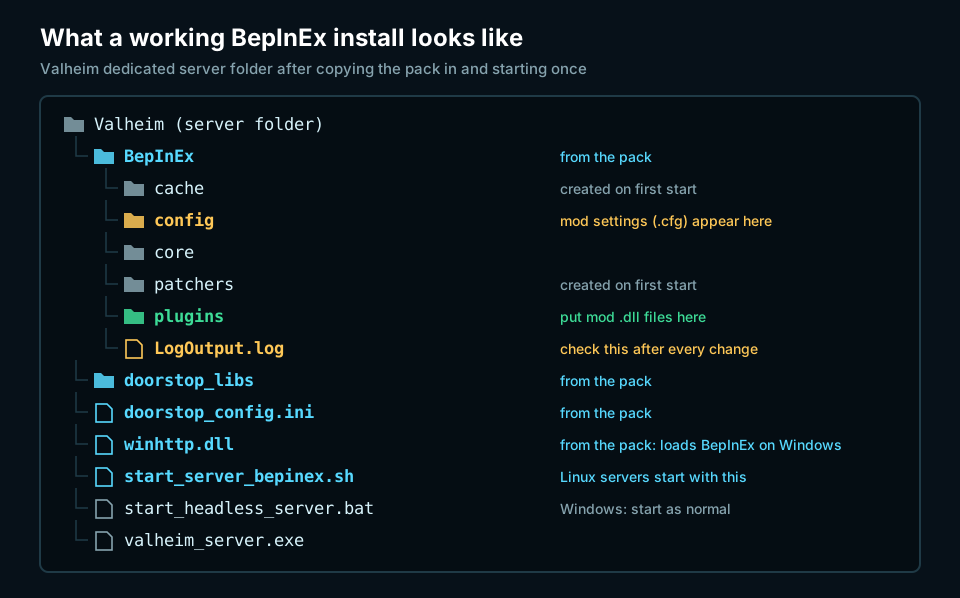
The most common mistake is one folder too deep: if you see BepInExPack_Valheim\BepInEx inside your server folder, move the contents up a level.
Step 3: Start The Server
On Windows, start the server the way you already do, with start_headless_server.bat or your own copy of it. The winhttp.dll file loads BepInEx automatically.
Steam updates overwrite start_headless_server.bat, so keep your settings in a copy with a different name, such as start_my_server.bat.
On Linux, the pack replaces the normal start script:
- Make the script executable:
chmod u+x start_server_bepinex.sh - Open
start_server_bepinex.shand edit the last line, the same way you would editstart_server.sh: your server name, port, world name and password, plus-crossplayif you use it. - Start the server with
./start_server_bepinex.sh. You should see BepInEx messages in the terminal before Valheim's own output.
Leave the lines under "BepInEx-specific settings" at the top of the script as they are.
Step 4: Check BepInEx Loaded
Open BepInEx\LogOutput.log in your server folder. It is rewritten every time the server starts. Near the top you should see the BepInEx version, the pack version and a line beginning Chainloader startup complete.
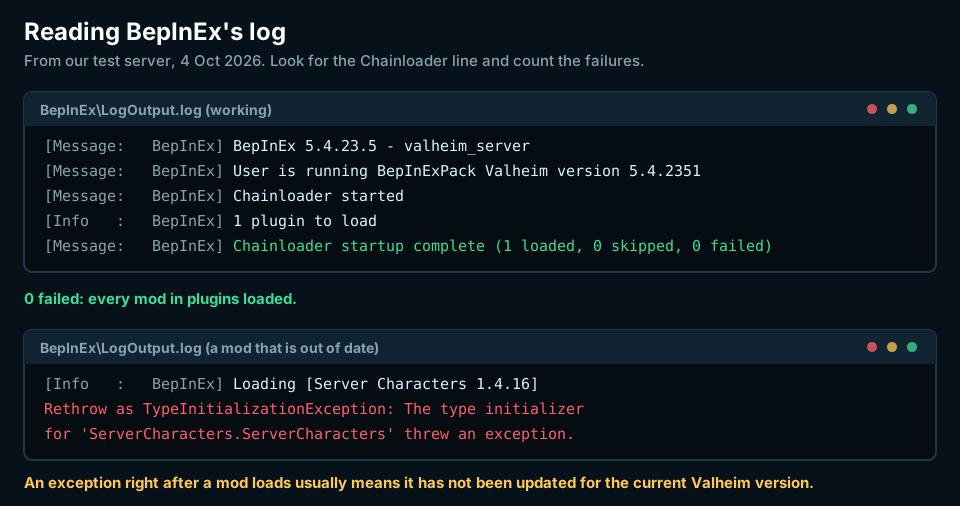
With no mods installed yet, it reads 0 plugins to load. That still means BepInEx is working. If there is no LogOutput.log at all, BepInEx did not start; see Common Problems.
The log also contains Valheim's own messages. A headless server prints some Unity errors about shaders and video on every start, with or without mods, and they are safe to ignore.
Step 5: Add Your First Mods
- Stop the server.
- Download the mod's manual download from Thunderstore or Nexus Mods and extract it.
- Copy the mod's
.dllfile, or its whole folder if it came with other files, intoBepInEx\plugins. Install any mods it lists as dependencies the same way. - Start the server and check the Chainloader line in
LogOutput.logagain.
After its first start, each mod writes a settings file to BepInEx\config, usually named after the mod, such as Azumatt.AzuCraftyBoxes.cfg. Edit these with the server stopped, and restart to apply them.
Which mods do players need too? It depends on the mod, and its page will say. Mods that only change server rules can run on the server alone. Mods that add items, building pieces or creatures, or change what players see, must be installed on the server and every player's PC, at the same version. Many of these use ServerSync, which pushes the server's settings to players and blocks anyone with a different mod version from joining.
Install BepInEx On Players' PCs
Each player who needs mods installs the same pack into their own game folder, usually steamapps\common\Valheim.
- Windows: copy the contents of
BepInExPack_Valheiminto the game folder and start Valheim from Steam. A BepInEx console window opens next to the game when it is working. - Linux: copy the files in, run
chmod u+x start_game_bepinex.sh, and in Steam set the game's launch options to./start_game_bepinex.sh %command%. - Mac: as Linux, but on Apple Silicon Macs the launch options must be
/usr/bin/arch -x86_64 /bin/bash ./start_game_bepinex.sh %command%. Without thearch -x86_64part the game starts with no mods.
For a group, a mod manager is easier than copying files by hand. r2modman and Gale install BepInEx and your mods into a separate profile, and r2modman can export the profile as a code your players paste in to get the same mods at the same versions.
Xbox console players cannot install mods. If you run a crossplay server, only use mods that work on the server alone.
Updating And Removing BepInEx
When Valheim updates, mods that patch the changed parts of the game can break until their authors update them. Before you update a modded server:
- Back up your world and your
BepInEx\configfolder. - Check your mods' pages for versions that support the new Valheim update.
- To update BepInEx itself, download the new pack and copy its contents over the old ones. Your
pluginsandconfigfolders are kept.
To turn mods off without deleting anything, open doorstop_config.ini and set enabled = false, then restart. On Linux, start the server with your normal start_server.sh instead. To remove BepInEx completely, delete BepInEx, doorstop_libs, doorstop_config.ini, winhttp.dll and the two _bepinex.sh scripts.
Common Problems
No LogOutput.log and no BepInEx messages
BepInEx is not starting. Check that winhttp.dll and doorstop_config.ini sit right next to valheim_server.exe, not one folder deeper. On Linux, check you started the server with start_server_bepinex.sh and that it is executable.
A mod shows an exception in the log right after loading
On our test server, a mod last updated for an older Valheim version loaded and then threw a TypeInitializationException. That pattern almost always means the mod has not been updated for your Valheim version. Check for a newer version, or remove it until there is one.
The log says a dependency is missing
The mod needs another mod to work, often a library such as Jötunn. The mod's page lists its dependencies; install each one into plugins too.
Players are kicked with a version mismatch
A mod using ServerSync found a different version on the player's PC. Make sure everyone, server included, has the same version of every mod. Sharing an r2modman profile code is the simplest way.
Where to get help
Ask in the mod's own Discord or comments, or in Azumatt's Discord, which the pack's maintainers point to. Do not ask in the official BepInEx Discord: the Valheim pack is customised, and they cannot help with it.
Frequently Asked Questions
Do I need BepInEx to mod a Valheim server?
For almost every mod, yes. Nearly all Valheim mods on Thunderstore and Nexus Mods are BepInEx plugins and list BepInExPack Valheim as a requirement.
Where do Valheim server mods go?
In the BepInEx\plugins folder inside your server folder. Each mod's settings file appears in BepInEx\config after the server has started once with it.
Do players need the same mods as the server?
Only for mods that add or change content players see, such as items, building pieces or creatures. Those must be installed on the server and every player's PC at the same version. Mods that only change server rules can run on the server alone. Each mod's page says which kind it is.
How do I know BepInEx is working on my server?
Open BepInEx\LogOutput.log after starting the server. It should show the BepInEx version and a line reading "Chainloader startup complete" with the number of mods loaded and failed.
Can Xbox players join a modded Valheim server?
Only if every mod works on the server alone, because console players cannot install mods. Mods that players also need will stop them joining or cause problems in game.
How do I disable BepInEx without uninstalling it?
Set enabled = false in doorstop_config.ini and restart the server. Set it back to true to turn mods on again.
Sources
Checked on 4 October 2026 against:
- BepInExPack Valheim on Thunderstore, version 5.4.2351, and the readme,
start_server_bepinex.shanddoorstop_config.iniinside it - BepInEx documentation
- Valheim modding wiki (ValTools)
- Our own test: a fresh Windows Valheim dedicated server installed with SteamCMD, BepInExPack Valheim 5.4.2351 copied in by hand, then started with no mods, with AzuCraftyBoxes 1.8.19 (loaded cleanly), and with Server Characters 1.4.16 (failed; last updated May 2025, before the current Valheim version)
Want a server with one-click mod installs? Compare Valheim server hosting by price, locations and reviews.
 Server Setup
 Troubleshooting
 Community & Growth