

To check lag on a game server, run a ping test to measure your latency and a traceroute to see where on the route any delay is added. Both are built into Windows, macOS and Linux, cost nothing, and take a couple of minutes. The same two tests tell you which datacentre to rent a server in.
- Ping sends a small message to the server and times the round trip. The average of those times is your latency, or "ping", in milliseconds (ms).
- Traceroute (
tracerton Windows) lists every router between you and the server and times each one, so you can see where delay is added as well as how much.
Before You Start
- Close anything else using your connection: downloads, streams, cloud backups, someone else's video call. Background traffic skews both tests.
- Get the server's IP address or hostname without the port. If you connect to
203.0.113.42:28045, test203.0.113.42. If your server has a domain name, you can test that instead. - Test over the same connection you play on. Wi-Fi adds its own delay; if you normally play on a cable, test on a cable.
Run A Ping Test
On Windows, press the Windows key, type cmd, press Enter, then run:
ping 203.0.113.42
Windows sends four pings and stops. On a Mac (Terminal is in Applications, then Utilities) or Linux, ping keeps going until you press Ctrl+C, so limit it to ten:
ping -c 10 203.0.113.42
For a steadier number, send more. ping -n 50 203.0.113.42 on Windows sends fifty.
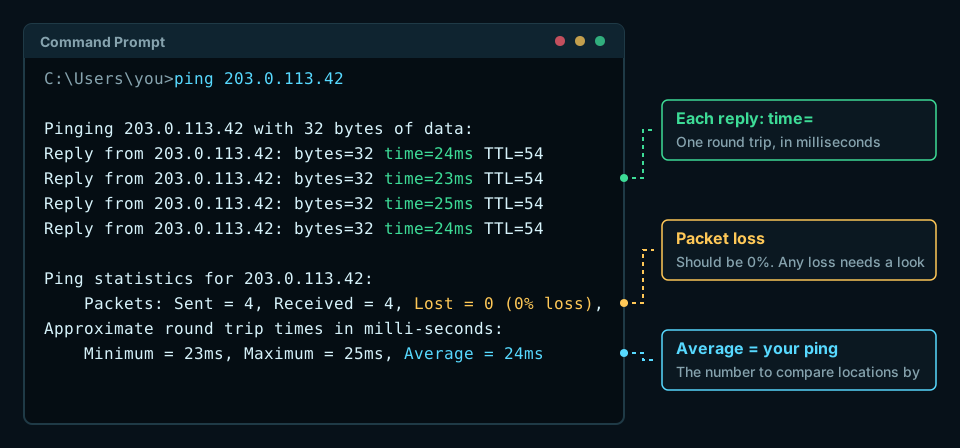
Read three things:
- Each reply's
time=. They should sit close together. Replies that swing from 20 ms to 200 ms (called jitter) feel worse in game than a steady but higher ping. - Lost. It should say
0% loss. Lost pings mean lost game data, which shows up as rubber-banding and actions that do not register. - Average. This is your ping to the server, and the number to compare when you test different locations.
What Is A Good Ping For Gaming?

| Average ping | How it feels |
|---|---|
| Under 50 ms | Excellent in any game |
| 50 to 100 ms | Comfortable for most games, including most survival and sandbox games |
| 100 to 150 ms | Noticeable in fast shooters; fine for slower games |
| Over 150 ms | Delayed hits and rubber-banding in most games |
Distance sets the floor. Light in fibre covers roughly 200 km per millisecond, and ping is a round trip, so London to New York (about 5,600 km each way) can never ping below about 56 ms, and real routes add more. No host can beat that.
Run A Traceroute
On Windows, in Command Prompt:
tracert 203.0.113.42
On a Mac or Linux, in Terminal:
traceroute 203.0.113.42
It can take a minute or more. If the output is too long to copy from the window on Windows, send it to a text file:
tracert 203.0.113.42 > C:\trace1.txt
Then open trace1.txt from the root of your C: drive and copy it from there.
How To Read A Traceroute
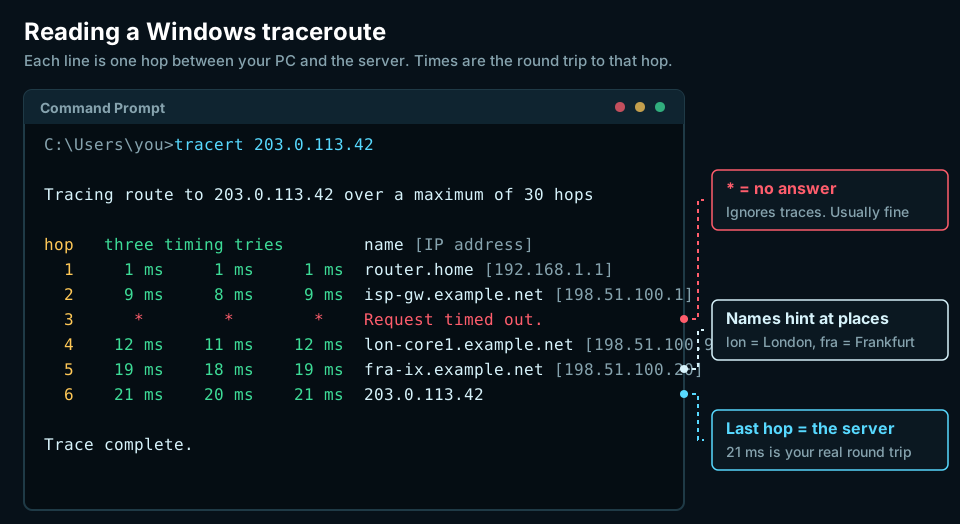
| Column | What it means |
|---|---|
| Hop number | The position along the route. A route can have a handful of hops or dozens. |
| Three times | The round trip to that hop, tried three times, in milliseconds. |
| Name | The hop's hostname, when it has one. It often hints at the city or network, such as lon for London. |
| IP address | The hop's address. |
Two things look alarming but usually are not:
- An asterisk (
*) or "Request timed out" means that hop did not answer. Many routers are set to ignore traceroute on purpose, so this alone does not mean packets are being lost. - A hop with no name, only an IP address, is common.
What to look for is a jump that stays high:
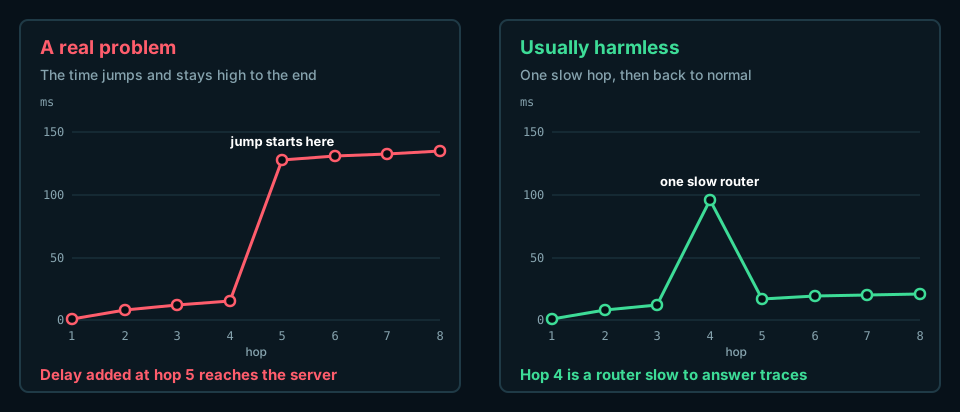
- Times that climb steadily are normal. Each hop is further away.
- A time that leaps and stays high on every hop after it marks where the delay is added. If that is well before the last hop, the delay is on the route between you and the server, often at your provider or where two networks meet. The server is not the cause.
- One slow hop that drops back on the next line is almost always a router that answers traceroute slowly. Ignore it.
For packet loss per hop, Windows has pathping 203.0.113.42, which runs a traceroute and then measures loss at every hop over about five minutes. On Mac and Linux, mtr does the same in real time (install it from your package manager or Homebrew).
Use Ping To Choose A Server Location
When you rent a server, its location affects your players' experience more than anything on the spec sheet.
- Ask each provider for a test IP or looking-glass address for every location you are considering. Many publish them on their network or locations page.
- Have your regular players ping each one from home, at the time of day you usually play.
- Weigh the results by where your players are, and pick the location with the best ping for the most players.
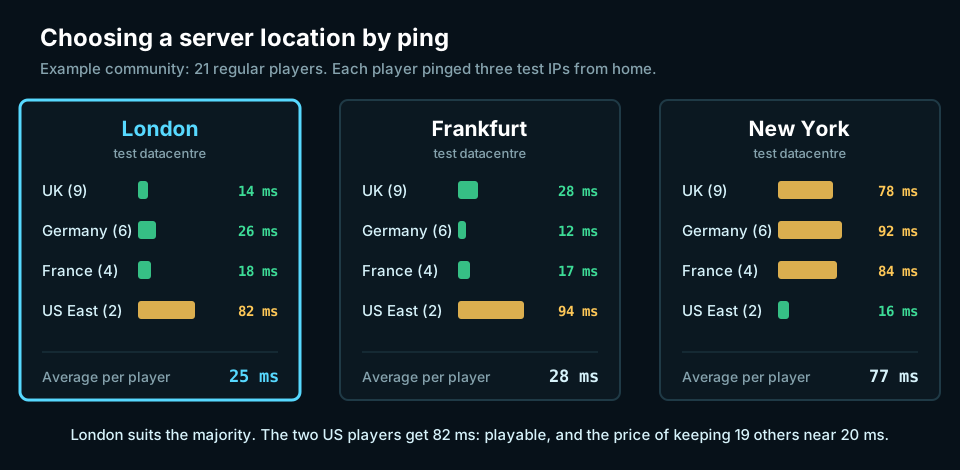
If your players are spread across continents, no location suits everyone. Pick the one that serves the majority, and tell the rest what ping to expect. Our hosting comparisons list the locations each host offers for your game.
What To Send Your Host's Support Team
If you contact support about lag, include:
- The complete traceroute, every line of it.
- A ping test of 50 or more pings, so they can see loss and jitter.
- The address you tested and roughly when you ran the tests.
- Whether other players are lagging too, and when it started.
With that, they can tell whether the fault is on your connection, somewhere along the route, or on the server. If ping and traceroute both look clean but the game still stutters, the cause is usually the server itself: see How to Diagnose and Fix Game Server Lag.
Frequently Asked Questions
What is a good ping for a game server?
Under 50 ms is excellent and 50 to 100 ms is comfortable for most games. Fast shooters start to feel delayed above 100 ms; survival and building games such as ARK, Valheim and Minecraft stay playable up to around 150 ms.
Does an asterisk in a traceroute mean packet loss?
Not on its own. An asterisk means that router did not reply to the traceroute, and many routers ignore these requests by design. It only points to a problem if every hop after it also times out or shows high times.
Can I ping a server's port?
No. Ping does not use ports, so remove the :port part and test the IP address or hostname. Some servers block ping entirely; if every ping times out but you can join the game, use the last line of a traceroute or the game's own ping display instead.
My ping is low but the game still lags. Why?
If ping is steady with no loss, the delay is on the server: an overloaded CPU, too little RAM, a heavy mod or a world save in progress. Our lag guide walks through those causes.
Should I send support a ping or a traceroute?
Send both. The traceroute shows where delay starts, and a longer ping test shows packet loss and jitter that a traceroute can miss.
 Community & Growth
 Community & Growth
 Community & Growth